Print a PDF as a booklet: check page order and orientation
Keep the PDF in reading order and apply Booklet once. Use our eight-page test to check the outer sheet first, then fold the complete booklet and verify every page.
Start with individual pages in reading order
A folded booklet needs a different arrangement on the sheet from the order in which you read it. Keep the source PDF as separate pages 1, 2, 3, 4 and so on. Let the print dialog arrange them. Do not move page 8 before page 1 in the source file.
Look at the PDF itself before printing. If one PDF page already shows two booklet pages side by side, such as 8 | 1, it may already be imposed for printing. Applying Booklet again would arrange those spreads a second time. Use the supplied print instructions for that file, or obtain the normal reading-order version.
This guide covers a small booklet made by nesting sheets and folding them once, with the spine on the left. It is not a recipe for binding a thick book in multiple sections.
Why eight pages need two sheets
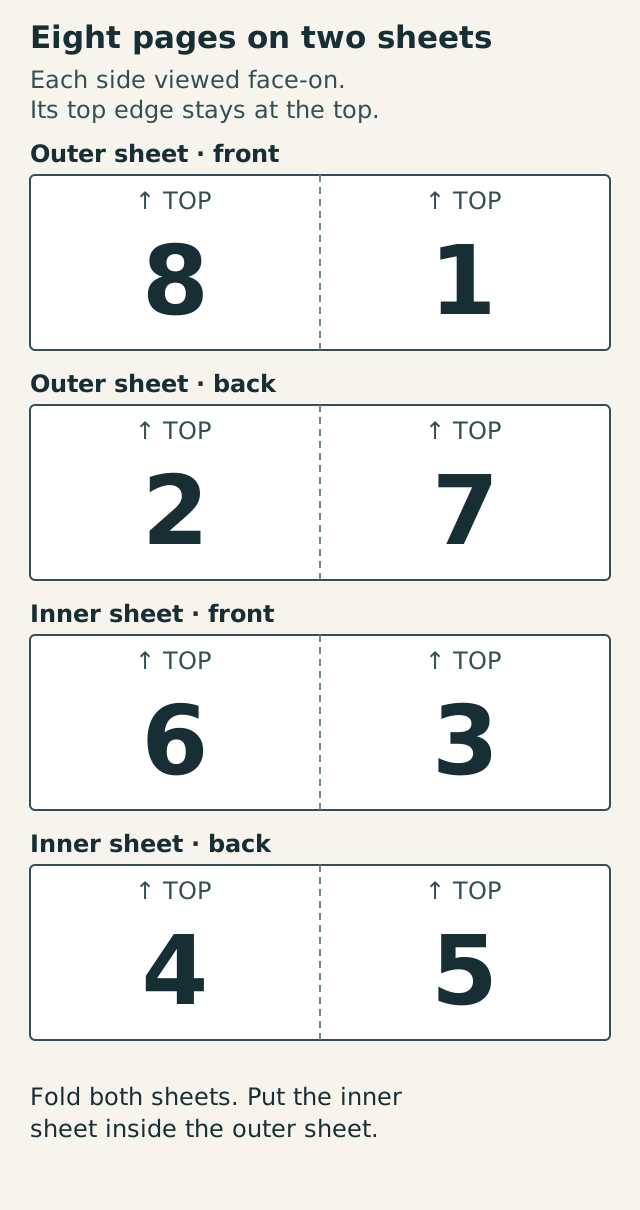
A sheet has two sides, and each side carries two booklet pages: four pages per sheet. For an eight-page booklet, the outer sheet carries pages 1, 2, 7 and 8; the inner sheet carries pages 3, 4, 5 and 6.
Viewed directly from each printed side with its top edge up: outer front 8 | 1, outer back 2 | 7, inner front 6 | 3, inner back 4 | 5. These are positions on a sheet, not a page-range string to type into the print dialog.
Use the test PDF before your own document
The download below makes a wrong result easy to identify. Every page has a large number, an upward arrow, and its expected place in the folded booklet. It contains eight ordinary portrait pages; no sheet arrangement is baked into it.
Download the eight-page booklet test
Eight individual A5 pages in normal reading order, with large numbers and TOP arrows. Use Booklet mode. Suitable for an A4 or Letter paper trial; this is an order-and-orientation test, not a scale ruler.
Set up Acrobat Reader on a computer
Open the downloaded PDF in desktop Acrobat Reader. In Print, choose your printer and loaded paper size. Select All pages, Booklet, and Left binding. Enable automatic page rotation within each sheet. For an automatic duplex printer, choose Both sides.
Use Acrobat as the one place that arranges booklet pages. Disable any additional booklet or multiple-pages-per-sheet setting in the printer driver; keep its ordinary duplex control available. Look at the preview: each printed side should contain two large numbered pages, not four tiny ones.
First print only the outer sheet
Keep All pages selected. In the booklet sheet range, set Sheets from 1 to 1. This selects the outer physical sheet of the eight-page job; selecting source pages 1–4 would instead make a different four-page booklet.
Print one copy. Fold it down the middle with page 1 as the front cover. Open the cover: page 2 should be upright on the left and page 7 upright on the right. Close it: page 8 is the back cover. This one-sheet test correctly reads 1, 2, 7, 8 because the inner sheet is absent.
If the printer has no automatic duplex, use Front side only, then reload that one sheet according to the printer manual and print Back side only. Keep All and the same sheet range for both passes. The printed face and feed-edge orientation depend on the printer and tray; there is no universal “put it face down” rule.
Read the result before changing settings
- Correct page numbers, but the back is upside down: test the other duplex flip-edge setting, or correct the reinsertion orientation for manual printing. Repeat the same one-sheet test; do not rotate pages in the source PDF to compensate first. The setting name alone does not prove the result.
- Both passes printed on the same face: the paper was reloaded onto the wrong printable side. Use the tray-specific reinsertion instructions and test one sheet again.
- Four small pages on each side, or paired spreads nested inside other spreads: check for two layers of booklet or multiple-page arrangement, including a PDF that was already imposed.
- Numbers match the diagram but the finished order is wrong: check which sheet is inside, which edge was folded, and whether page 1 is the outside front cover.
- Order is right but text is too small or clipped: check paper size and preview. Booklet printing scales pages to fit; a full-size document may become difficult to read at half-sheet size. A successful numbering test does not establish readable type size for your own document.
Then check the complete booklet
After the outer-sheet test passes, print a complete test. With automatic duplex, choose Both sides and restore the sheet range to 1–2. For manual duplex, print each physical sheet separately: sheet range 1–1 with Front side only, then Back side only; repeat for range 2–2 on a fresh sheet. Keep All pages selected and use the tested reinsertion orientation each time.
Fold both sheets and place the inner sheet inside the outer one. Check before stapling: front cover 1; opening 2 | 3; centre 4 | 5; opening 6 | 7; back cover 8. All TOP arrows must remain at the top.
Only then try your document. Check its preview and print one complete proof before making several copies. Keep a note of the working printer, tray, paper size and duplex setting.
Account for blank pages and the back cover
The finished page count must be a multiple of four. Divide the source count by four, round up to a whole sheet, then multiply by four. Six source pages need eight page positions: two are blank. Ten need twelve: again two are blank. Eight need no blanks.
If your final source page is intended as the back cover, plan the blank positions explicitly. For a ten-page document, inserting two blanks immediately before the intended final cover makes that cover PDF page 12. Adding them after it leaves the cover inside the booklet. Check the imposed preview instead of assuming an automatic padding rule places the cover where you want.
What was checked
Coru created the numbered PDFs and diagrams for this guide and checked the digital page order, page count and rendered content. The print controls were checked against Adobe documentation. We did not run Acrobat desktop or test a physical printer. The one-sheet proof is what verifies your actual printer, tray and driver combination.