Everyday documents
Rotate and save selected PDF pages: why qpdf +90 differs from 90
Use a relative rotation to correct the pages as they appear, save a new PDF, then reopen it. Our mixed-rotation example shows why setting every selected page to the same stored angle can give the wrong result.
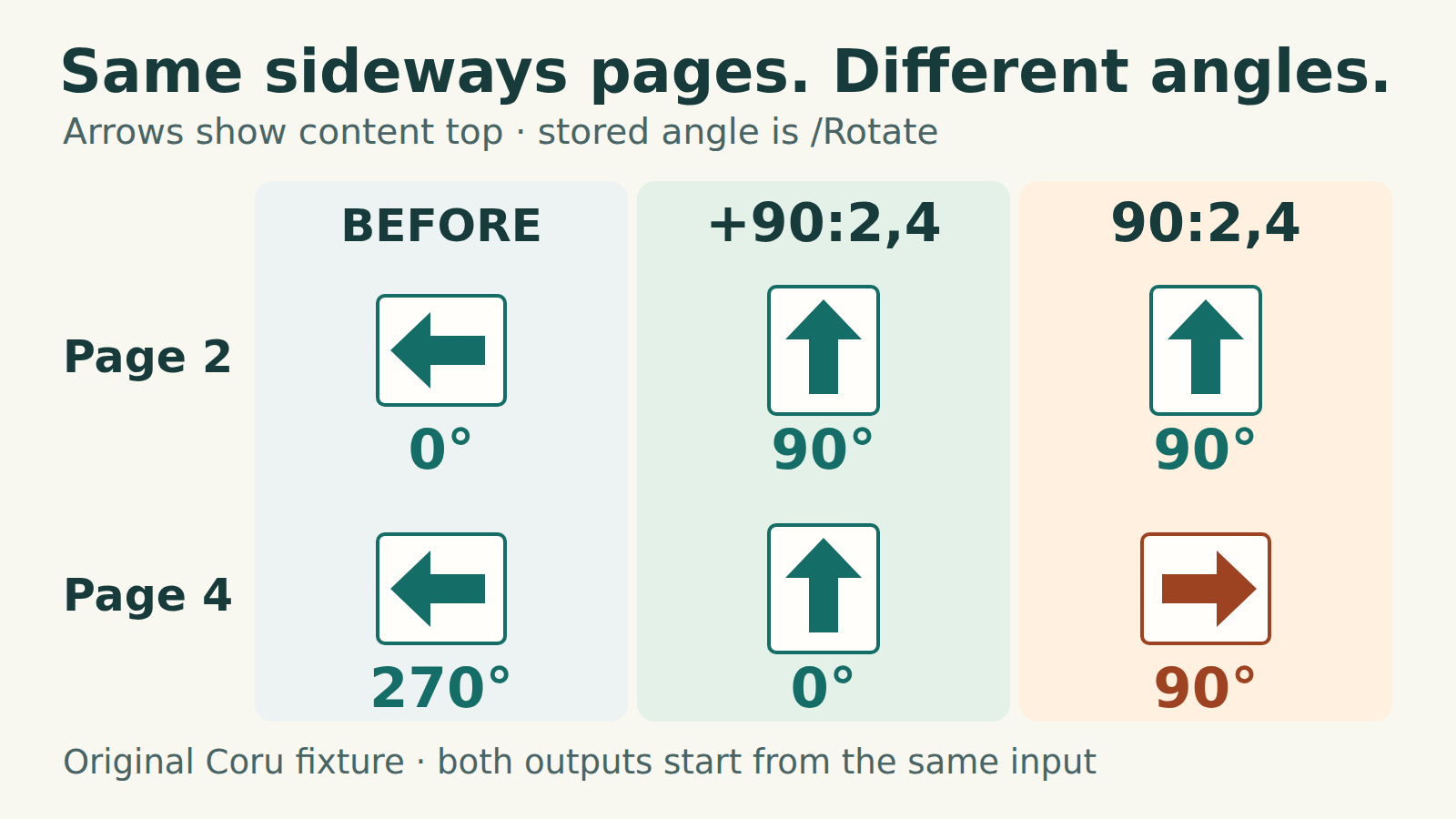
Rotate the pages that look wrong
First undo any temporary Rotate View adjustment in your PDF viewer. Choose the correction from the file’s saved orientation, not a view you have already turned.
If the top of the content on pages 2 and 4 currently points left, turn those pages 90 degrees clockwise. With qpdf installed, open a terminal in the folder containing a working copy named mixed.pdf. Choose a new output filename: qpdf can overwrite an existing output. Keep the original.
Save the corrected copy
bash
qpdf "mixed.pdf" --rotate=+90:2,4 "upright.pdf"The + sign matters. +90 adds a clockwise quarter-turn to the current rotation. 2,4 selects the second and fourth physical pages, counting from the start of the PDF.
Choose the direction from what you see
If the top of the content points right, use -90 instead. For an upside-down page, use +180. Apply each correction to the pages that need it; rotating every page can spoil pages that already look correct. A skewed scan tilted by a few degrees needs a deskew tool, not this quarter-turn command.
These are local file operations. After installing qpdf, the commands do not need a document upload. Download instructions are linked under Sources. If the shell cannot find qpdf, check the installation with qpdf --version before changing the page selection.
Why 90 and +90 can produce different results
A PDF page can contain sideways artwork, a stored rotation value, or both. Its visible orientation comes from their combination. A page that looks sideways therefore does not tell you the stored angle.
The qpdf option --rotate=90 sets the selected pages’ rotation value to 90 degrees. --rotate=+90 adds 90 degrees to the existing value. Use the relative form when the instruction is “turn this page clockwise from how it looks now.” Setting an absolute value is useful only when you know that value is what the page needs.
Our four-page counterexample
We made a PDF with pages 1 and 3 upright. Pages 2 and 4 both look turned left. Page 2 contains artwork turned left with a stored rotation of 0 degrees. Page 4 contains upright artwork with a stored rotation of 270 degrees. They need the same visible correction, despite their different stored angles.
The +90:2,4 command makes both selected pages upright. Their resulting rotation values are 90 and 0 degrees. Pages 1 and 3 are unchanged. The following absolute command is deliberately the wrong choice for this example:
Counterexample: setting an absolute angle
bash
qpdf "mixed.pdf" --rotate=90:2,4 "absolute.pdf"In our fixture this repairs page 2 but leaves page 4 turned right. Both output files still pass qpdf --check.
Reopen the saved file
Close the output and open upright.pdf again. Check the actual saved document rather than relying on the viewer’s current rotated view. Some viewers offer a view rotation that does not change the file.
Do not run the relative correction repeatedly on an already corrected output. Another +90 rotates those pages again. If the first attempt is wrong, return to the original working copy, change the direction or selection, and write a new output.
Check count and structure
bash
qpdf --show-npages "upright.pdf"
qpdf --check "upright.pdf"
For this example the first command prints 4. The second checks PDF structure; it cannot tell you whether the pages look upright.
Check the content as well
- Confirm the same number and order of pages. Use thumbnails and a distinctive heading to check every changed page.
- Inspect an unchanged page too. Make sure the selected positions were physical pages, not the page numbers printed on them.
- Compare page edges, small text and any important numbers with the original. If text selection matters, try copying a line from the saved file.
- Read any qpdf warnings before using the output. This example covers ordinary pages; signed documents and interactive forms need a workflow that supports their particular requirements.
What this fixes—and what it does not
Rotation changes the page’s displayed orientation. It does not make a scanned page searchable, straighten a slightly tilted scan, remove private content, or prove that a document is accessible. The related guides cover OCR diagnosis and selecting pages by physical position.
What we tested
On 21 October 2026, Coru ran qpdf 11.9.0 on an original four-page fixture under Linux with networking disabled. The selected pages had different stored rotation values but both appeared turned left. Relative +90 made both upright; absolute 90 fixed page 2 and left page 4 turned right. Reapplying +90 turned both corrected pages right again.
The corrected output matched our upright reference page for page when rendered at 90 dpi. The page count, order and extracted text stayed the same; the input file hashes stayed unchanged. Separate fixtures also checked -90 and +180. These are controlled examples, not a guarantee for every PDF, viewer, form, signature or accessibility structure.