Everyday documents
Extract and merge PDF pages: use positions, not printed numbers
qpdf can copy selected pages into a new PDF on your computer. Its page ranges count from the first physical page, starting at 1. If a report has a cover and contents before printed page 1, selecting 1-2 copies those opening pages. Map the positions before building your file.
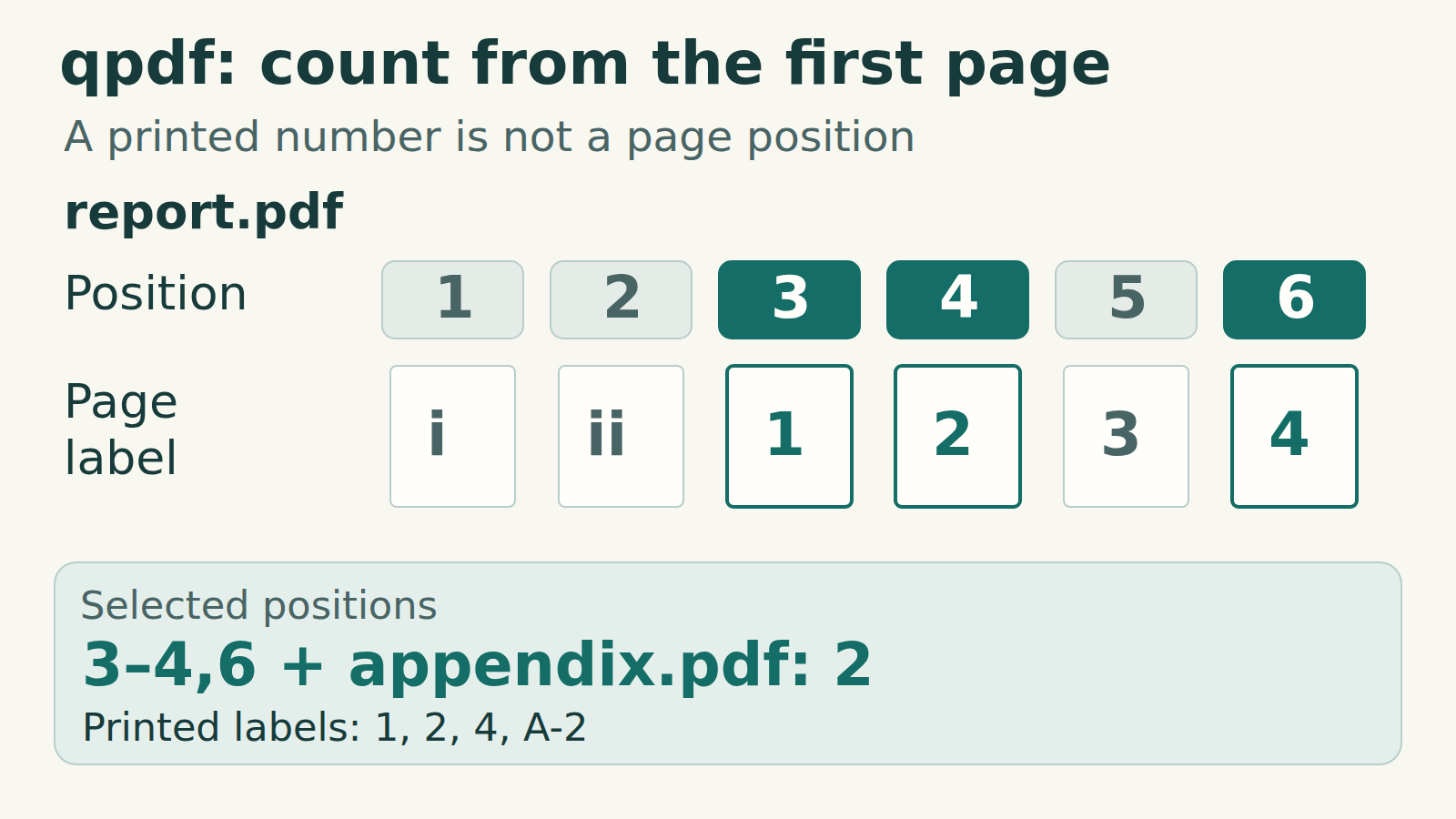
The exact task
You need printed pages 1, 2 and 4 from a report, followed by appendix page A-2. In our invented six-page report, physical positions 1–6 have labels i, ii, 1, 2, 3, 4. The appendix has three pages labelled A-1, A-2, A-3. The required positions are therefore report 3, 4, 6 and appendix 2.
Prepare a working folder
Install qpdf using its official download guidance. Open a terminal in a folder containing copies named report.pdf and appendix.pdf. Keep the originals. Choose output names that do not already exist; qpdf can overwrite an existing output. These commands process local files. They do not require uploading the documents.
This example suits ordinary PDFs where you need the selected page content. For signed documents, interactive forms or a requirement to preserve accessibility tags, use a workflow that explicitly supports those features. We did not test those cases.
Build the four-page packet
bash
qpdf --empty --pages "report.pdf" 3-4,6 "appendix.pdf" 2 -- "packet.pdf"3-4 includes both positions, and the comma adds position 6. Each range belongs to the filename immediately before it. The standalone -- ends page selection; packet.pdf is the output.
Check the numbering before changing the command
A physical position is the page’s place in the file, counted from 1. A printed number is visible page content. A PDF page label is separate metadata that some viewers display in their navigation controls. These can differ. In our sample the printed numbers and PDF labels agree, but both differ from the physical positions.
Use thumbnails or a viewer’s absolute page counter to count from the first page. Check the visible heading at every selected position. Do not assume the number typed in a viewer is an absolute position: some viewers accept page labels.
Our command produces this order: Scope (printed 1), Checklist (printed 2), Decision (printed 4), Required attachment (printed A-2). It omits the report’s opening pages, Draft note (printed 3), and the other appendix pages. If your files differ, build your own position map first.
Extract only the two consecutive report pages
bash
qpdf --empty --pages "report.pdf" 3-4 -- "excerpt.pdf"This creates one two-page excerpt from physical positions 3 and 4. It does not create a separate PDF for every page.
Why the command starts with --empty
--empty starts from an empty primary document and adds the selected pages. It avoids taking the first source as the document-level template. In our test, the copied page labels survived, while the source bookmarks and document title did not.
qpdf documents limits around document-level features when selecting pages. Do not assume bookmarks, forms or tags will be rebuilt for the new selection. --empty is not a redaction or privacy-cleaning command; this workflow does not establish that a PDF is safe to disclose.
Check the saved packet
bash
qpdf --show-npages "packet.pdf"
qpdf --check "packet.pdf"
The first command should print 4 for this example. The second checks PDF structure. A clean --check result does not verify that you selected the intended content.
Open the output and compare it
- Confirm four pages in the intended order. Check a distinctive heading on every page, including the boundary between the report and appendix.
- Compare rotation, page edges, small text and any important numbers with the originals. Copy a line if searchable text matters.
- Expect labels 1, 2, 4, A-2 in this example. Gaps are deliberate: copying pages does not renumber the numbers printed on them.
- If qpdf reports warnings or errors, read them before using the output. If a command is unavailable, check the installation and run qpdf --version; changing the page range will not fix a missing executable.
What we actually tested
On 21 October 2026, Coru created the two labelled PDFs and ran qpdf 11.9.0 on Ubuntu 24.04 with networking disabled after setup. The packet contained four pages with labels 1, 2, 4, A-2; the excerpt contained two with labels 1, 2. Selecting physical positions 1-2 instead produced i and ii.
For every selected page, extracted text, page dimensions and rendered pixels at 150 dpi matched its source page. The input file hashes stayed unchanged. These results apply to our simple original fixtures; they do not guarantee preservation for every PDF or test a Windows or Mac interface.