Everyday documents
PDF search misses words: check the page before running OCR
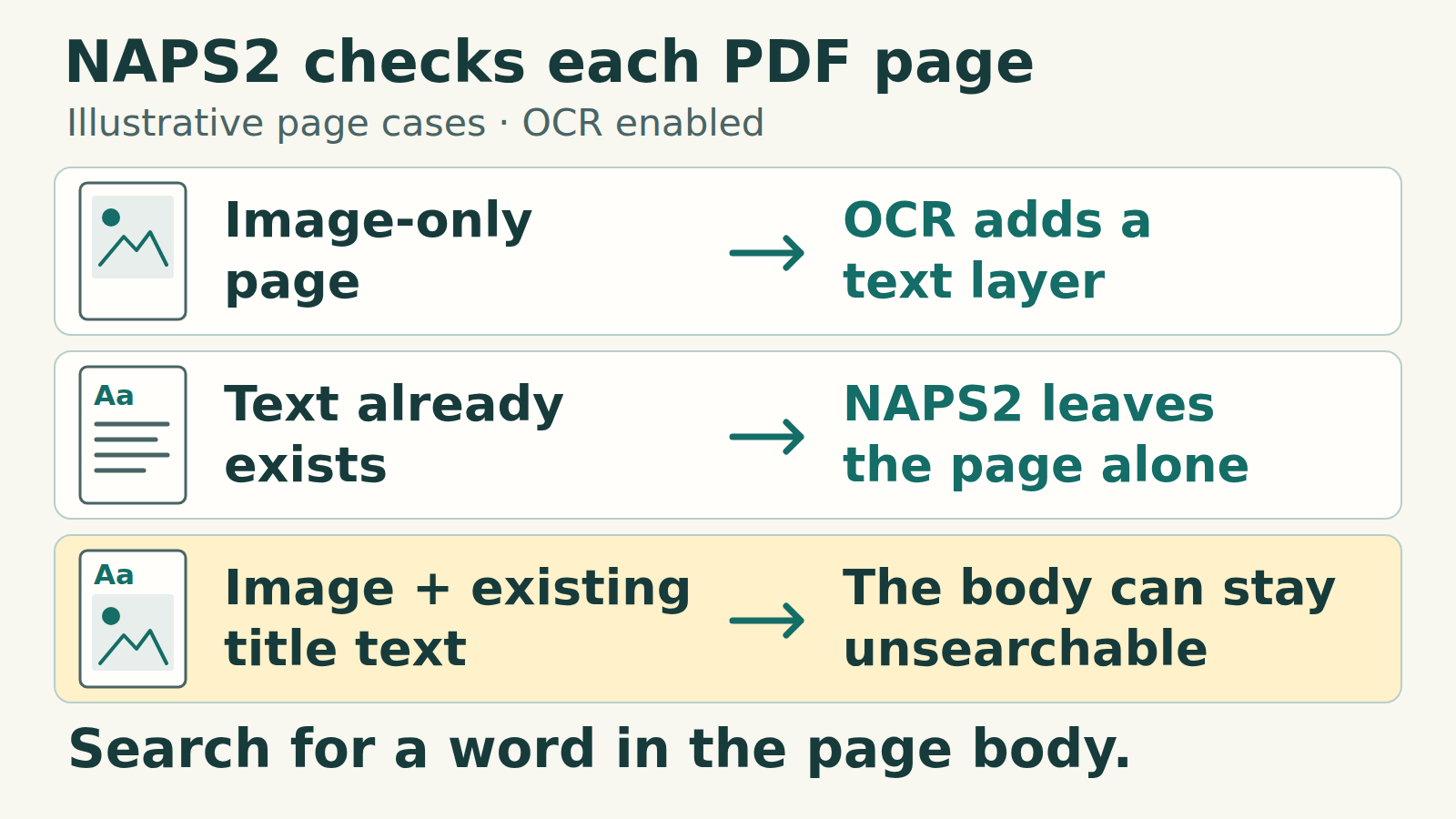
If PDF search cannot find a word you can see, test that word on that page. A selectable heading does not prove the body has searchable text. OCR means optical character recognition. NAPS2 can recognize image-only pages, but skips OCR on imported pages with existing text.
Start with the exact saved file
Keep the original. Open a local copy in a PDF viewer and choose a distinctive word from the body of each page. Search for it, select the same line, and paste it into a plain-text editor. Do not test only the cover or a repeated heading.
If the pasted line is correct but search fails, try the same saved file in another viewer before changing it. If the pasted text is missing or wrong, the file needs closer inspection. A failed search alone does not identify the cause.
Add OCR to an ordinary scanned PDF
- Install NAPS2 from its official download page. Import the existing PDF; a scanner is not needed for this task.
- Open OCR (Tools → OCR on Mac), download the document’s recognition languages, and enable “Make PDFs searchable using OCR”. For mixed English/Russian text select both languages.
- Save to a new PDF filename and wait for saving to finish. OCR normally runs during saving; importing and staring at the thumbnails is not the final step.
- Open the new output file and repeat the body-word and copy checks. Check every page, not just the first success.
Our four-file check
On 21 October 2026, we tested NAPS2 8.5.1 on Ubuntu 24.04 with English and Russian recognition data. Coru created four two-page PDFs from the same short English and Russian text. The body contained lighthouse on page 1, маяк on page 2, and the identifier 004271 on both pages. Scanned variants were images rendered at 300 dpi.
We processed these files through the console with networking disabled after setup. We checked output text and search using PyMuPDF, page count, and before/after page renders at 150 dpi. These are local file tests, not a test of a Windows or Mac graphical interface.
- Image-only scan: neither body word was searchable before OCR. Afterwards lighthouse and маяк each had one match on their respective pages; 004271 had one match on each.
- Text PDF: both pages already had text. Their extracted text stayed unchanged.
- Mixed PDF: page 1 already contained English text; page 2 was a Russian image. The existing text remained and the Russian body became searchable.
- Partial text: both pages were images with only the title also stored as invisible text. After saving, only the titles were searchable. Both body words and 004271 still had zero matches.
A successful search can still hide a recognition error
All four outputs retained two pages. Their rendered pixels matched the inputs at the tested 150 dpi, and the original input files stayed byte-for-byte unchanged. This does not mean the output PDF files were identical to their inputs.
In the recognized Russian scan, маяк and 004271 were correct, but the visible Cyrillic word Номер was extracted as Latin Homep. The mixed file had the same error. That is why finding one test word does not validate the rest of a page.
One observed OCR error
text
Visible:   Номер: 004271
Extracted: Homep: 004271
Observed in our clean Russian sample with eng+rus recognition. The digits survived, while the preceding word changed script.
The Linux command used for the scan test
bash
naps2 console -i "scan.pdf" -o "scan-searchable.pdf" -n 0 --ocrlang "eng+rus" -vRun from the folder containing scan.pdf after installing NAPS2 and the English/Russian OCR data. Use a new output name. -n 0 processes the imported file without scanning; eng+rus selects both recognition languages. Windows and Mac use different launch commands; see the official CLI documentation.
Confirm that an output file was actually saved
Open the named output and verify it, even when a command finishes. In our initially incomplete Linux test environment, a missing image-library dependency caused a save error while the process returned exit code 0. The failed run produced no output PDF. After adding the required libraries to our isolated environment, the four tests above completed. A process exit code alone was not a reliable success check in this setup.
A text heading can prevent body recognition
An imported page can contain a scan of the body plus a small existing text layer. Selecting its heading tells you only that the heading is text. NAPS2’s rule is per page, so it does not run OCR on a page with existing text. Repeating the same OCR run is not a repair for that case.
If you can obtain the original document, export a fresh PDF with usable text. If it is a paper scan, obtain a clean image or a fresh scan of the affected page. Keep these separate from the original document.
Optional repair for a simple two-page scan
For our partial-text example, we exported each page to PNG, imported the two images, then created a new PDF with OCR. This removed the incomplete text layer and recovered the body-word searches. The Homep error remained.
This example is for a disposable copy of a plain, unsigned scan with exactly two pages. It renders pages as images and discards PDF structure. Do not use it on forms, signatures, links, annotations, or a document whose structure must survive. Prefer a fresh source export when available. Keep the original and use unused output filenames.
Rebuild our two-page example on Linux
bash
naps2 console -i "partial.pdf[0]" -o "page-1.png" -n 0 --disableocr -v
naps2 console -i "partial.pdf[1]" -o "page-2.png" -n 0 --disableocr -v
naps2 console -i "page-1.png;page-2.png" -o "repaired.pdf" -n 0 --ocrlang "eng+rus" -v
[0] selects the first page and [1] the second; numbering starts at zero. These commands include ONLY those two pages. For a larger document they would omit the rest. The quoted semicolon joins the two input image filenames; it is not a shell command separator.
Check the rebuilt copy separately
In this test, lighthouse, маяк and 004271 became searchable in repaired.pdf. The original partial.pdf stayed unchanged. But the page size changed from 595 × 842 points to approximately 594.96 × 841.92 points after the PNG round trip. This repair was not pixel-identical and did not cure every OCR error. Check the saved copy’s appearance and text before using it.
Check the result before relying on it
- Search a distinctive body word on each page, including the middle and last pages. A match proves that occurrence only.
- Copy names, dates and identifiers into a plain-text editor. Compare important numbers character by character with the visible page; OCR may confuse similar letters and digits.
- Count the pages and inspect order, rotation and cropped edges. Zoom into small text and compare it with the original.
- Keep unresolved recognition errors visible in your own checklist. Searchable text is not a guarantee of correct reading order, accessible tagging or a correct spreadsheet table.
Scope of this method
This is a workflow for ordinary scans you are allowed to process. Keep digitally signed PDFs and interactive forms intact; a newly saved or rasterized copy may not preserve their functions. OCR is not a way to bypass document permissions.
Our test uses deliberately clean, short examples. It does not establish accuracy for handwriting, weak scans, complex layouts or your document. The desktop instructions above follow NAPS2’s documentation; the exact environment and observed command-line results are stated with our test.