Everyday documents
Print a PDF at actual size: a 100 mm test sheet
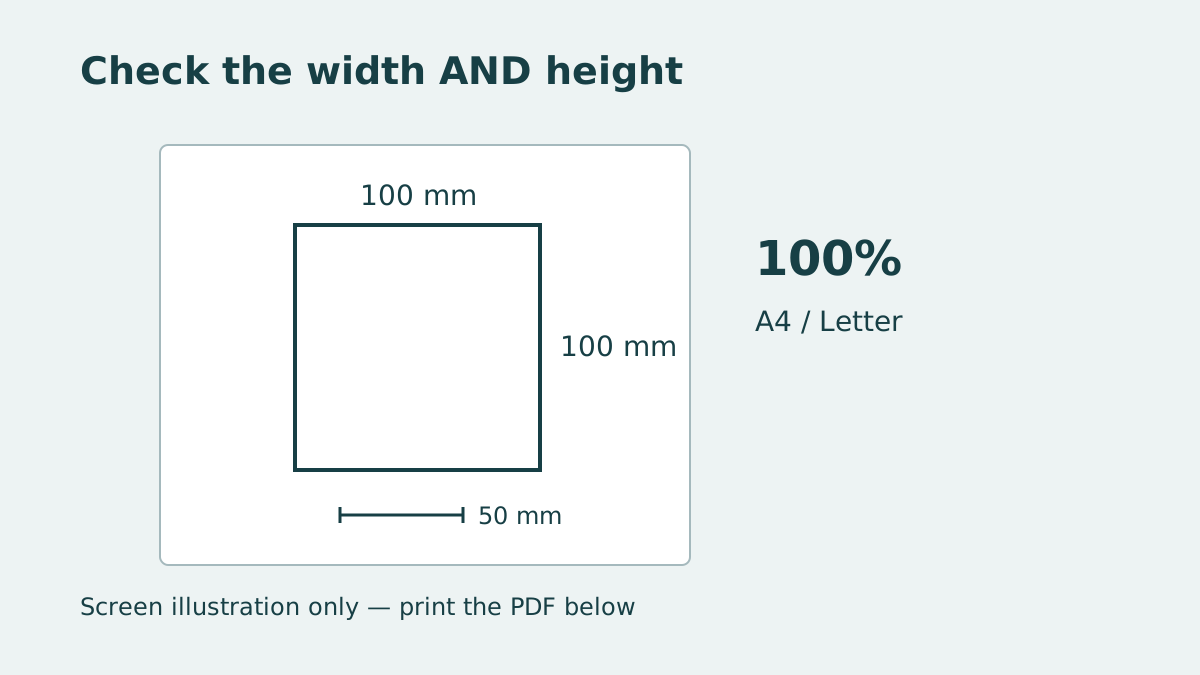
Choose the matching test PDF, print at actual size, and measure both sides of a 100 mm square. A short checklist helps explain why a template prints too small or loses its edges.
Start with one sheet
A sewing template, a paper model or a cutting guide needs the right physical dimensions. Start with one proof: choose the PDF that matches your paper, print it at actual size, then measure the printed marks with a physical ruler.
Each Coru test PDF has one 100 × 100 mm square and a separate horizontal 50 mm check. Choose A4 for 210 × 297 mm paper, or US Letter for 8.5 × 11 inch paper (215.9 × 279.4 mm). Open the downloaded PDF and print that file itself. Printing this article, its illustration or a screenshot is a different operation.
Download the A4 test sheet
One page, 210 × 297 mm. Print this PDF at actual size; measure the 100 mm square in both directions and the 50 mm segment.
Download the US Letter test sheet
One page, 215.9 × 279.4 mm. Print this PDF at actual size; measure the 100 mm square in both directions and the 50 mm segment.
Set the print scale
Choose your physical printer and the matching paper size. Print one copy, one page per sheet. Use normal printing with borders; check the printer’s own settings for another fit, enlargement or reduction option.
Find the control in the print dialog, rather than changing the document’s screen zoom:
- Adobe Acrobat: Print → Page Sizing & Handling → Size → Actual size. This avoids Acrobat scaling, but content that does not fit can be cropped.
- Microsoft Edge: open Print and choose Actual size in the scaling options. Expand More settings if necessary; check Paper size and Pages per sheet.
- Preview on Mac: File → Print → Preview section → Scale, then enter 100%. Select Scale rather than Scale to Fit.
Why “Fit” can make a template smaller
Adobe’s Fit setting adjusts the page to the printer’s printable area. That area can be smaller than the whole sheet. Matching A4 paper and an A4 PDF therefore does not by itself prevent reduction. “Shrink oversized pages” can also reduce a page. Neither option promises the original dimensions.
Measure three distances
Lay the print flat. Use the ruler’s zero mark as the starting point, not the physical end of the ruler. Align that zero mark with the centre of one printed line. Measure to the centre of the opposite line; measuring outside edge to outside edge includes the line thickness.
- Measure the square horizontally: the distance between the left and right line centres should be 100 mm.
- Measure it vertically: the distance between the bottom and top line centres should also be 100 mm. Keep the ruler parallel to the side.
- Measure the separate horizontal check between the centres of its two end ticks: 50 mm. Record all three readings before changing settings.
Read the result before adjusting anything
These are worked examples, not measurements from a printer we tested:
- 96 mm wide, 96 mm high, and 48 mm on the short check: all three are consistent with 96% scale. Calculation: 96 ÷ 100 × 100 = 96%; 48 ÷ 50 × 100 gives the same result.
- 100 mm wide and high, but some content near the page edge is missing: the measured square is the right size. Investigate clipping and paper size instead of shrinking an exact-size template to make everything visible.
- 98 mm wide but 100 mm high: one uniform percentage cannot make both dimensions 100 mm. Repeat the measurements, checking alignment. If the difference persists, compare another PDF reader and consult the printer’s guidance.
- 100 mm on the square but a noticeably different proportion on the 50 mm check: recheck the tick centres and ruler placement. Do not infer a single scale factor from inconsistent readings.
Check these causes first
Confirm that the file, print dialog and loaded paper agree on A4 or Letter. A4 is taller and narrower; selecting the other name is not a way to preserve a template’s layout. In a mixed-size PDF, check each distinct page size.
Turn off borderless expansion for this test. Epson’s XP-8700 guide, for example, documents enlargement that cuts off image edges in borderless mode. Other printer controls vary: use your model’s instructions.
If the downloaded test prints correctly but your template does not, check the template’s own reference marks and paper instructions. A successful test sheet does not establish the dimensions of another file. A screenshot or an already resized copy may no longer contain the intended geometry.
Why not immediately enter 104.17%?
For the hypothetical 96 mm result, 100 ÷ 96 ≈ 1.0417 is the mathematical enlargement factor. It describes uniform scaling only. It does not identify which setting caused the reduction, restore clipped content, or correct different horizontal and vertical errors.
First correct the settings and print another proof at 100%. Only consider deliberate compensation after confirming a repeatable uniform error, checking that the enlarged content fits, and measuring a fresh proof. Keep the original file. Do not apply a remembered percentage to every printer or PDF.
Use the check for your actual job
Before printing a full template, measure its own reference on a proof made with the final settings. Decide whether the result is accurate enough for that task and the ruler you use; a screen preview cannot establish physical accuracy.
The two downloadable sheets are original Coru vector drawings with the same reference dimensions. They are test files, not calibrated measuring instruments. We have not tested them on a physical printer; paper, the printer and its settings still need the printed measurement above.